EN | UA

Invoice Master Pro

"Efficiency shouldn't be complex or expensive.
It should just work."
Download for Windows

Windows Security:

As a new product from an independent developer, the application might trigger a SmartScreen warning. It is 100% safe. Just click "More info" and then "Run anyway".

With extensive experience as a practicing dentist and developer, I clearly understand all the nuances of clinic-laboratory interactions. Today, laboratories are practically forced to choose between two extremes: overpaying for complex, inconvenient software or dealing with the daily chaos of notebooks and endless Excel spreadsheets.

That is exactly why Invoice Master Pro was created. Its fundamental advantage is its intelligent core—a well-thought-out database. It's a true "digital brain" that brings perfect order to your business, structures clinic relations, and ensures absolute accuracy in every financial report.

📋 ARCHIVE

Automatic archive that stores the history of every job, including up-to-date prices and personal nuances for each doctor.

💰 CONTROL

Instant debt balance—an intelligent system that automatically reflects the real state of your finances.

🔍 SEARCH

With "smart" search, you can instantly find any invoice or patient, even with thousands of records in your database.

📊 REPORTS

Generate detailed summary reports for any period in just a few clicks.

And the best part: creating a professional invoice now takes less than a minute, and any summary report is generated without a calculator—in just a few clicks. Dedicate your freed-up time to resting or your favorite hobbies, and leave all the routine work to Invoice Master Pro.

Explore the Interface

Select a section to see it in action
User Guide

1. What is Invoice Master Pro and who is it for?
It is specialized software (for Windows), created by a practicing dentist specifically for dental technicians and dental laboratories. It allows you to create invoices in seconds, manage a database of clinics and prices, track debts, and generate PDF invoices and reports with the ability to email them to doctors or print them.

2. How does the free trial work?
The first month of use is completely free! A 30-day trial with full functionality (no limitations) is automatically activated upon first launch. You don't need to enter card details or pay anything. You just test the program. If it suits you, you can subscribe after the trial ends. Alternatively, contact the developer via the app interface (Support: email or Telegram) to purchase an annual license at a discount.

3. Does the program require internet access?
Yes. Since the app has a subscription and automatic update system, an internet connection is required on launch (to check your license status). The internet is also needed to send invoices via email and upload backups to Google Drive (if selected).

4. What is the QR code at the bottom of the PDF invoice?
It contains payment details and a sample QR code. You can easily replace it with your own bank's QR code. Just save your code's image in the program folder, naming it exactly like the original file (replacing the old one). This allows doctors to pay invoices with one click using their smartphone scanner. If you simply delete the QR code image from the folder, it will not appear on the invoices.

5. How do I update the program?
Invoice Master Pro has a built-in update system. When a new version is released, the program will notify you upon launch and offer to "Download and update". Important: After the download completes, you must close the program (click the 'X') so the system can apply the new files.

6. What if I am missing a specific feature?
Contact support (email or Telegram) and we will try to add what you need.

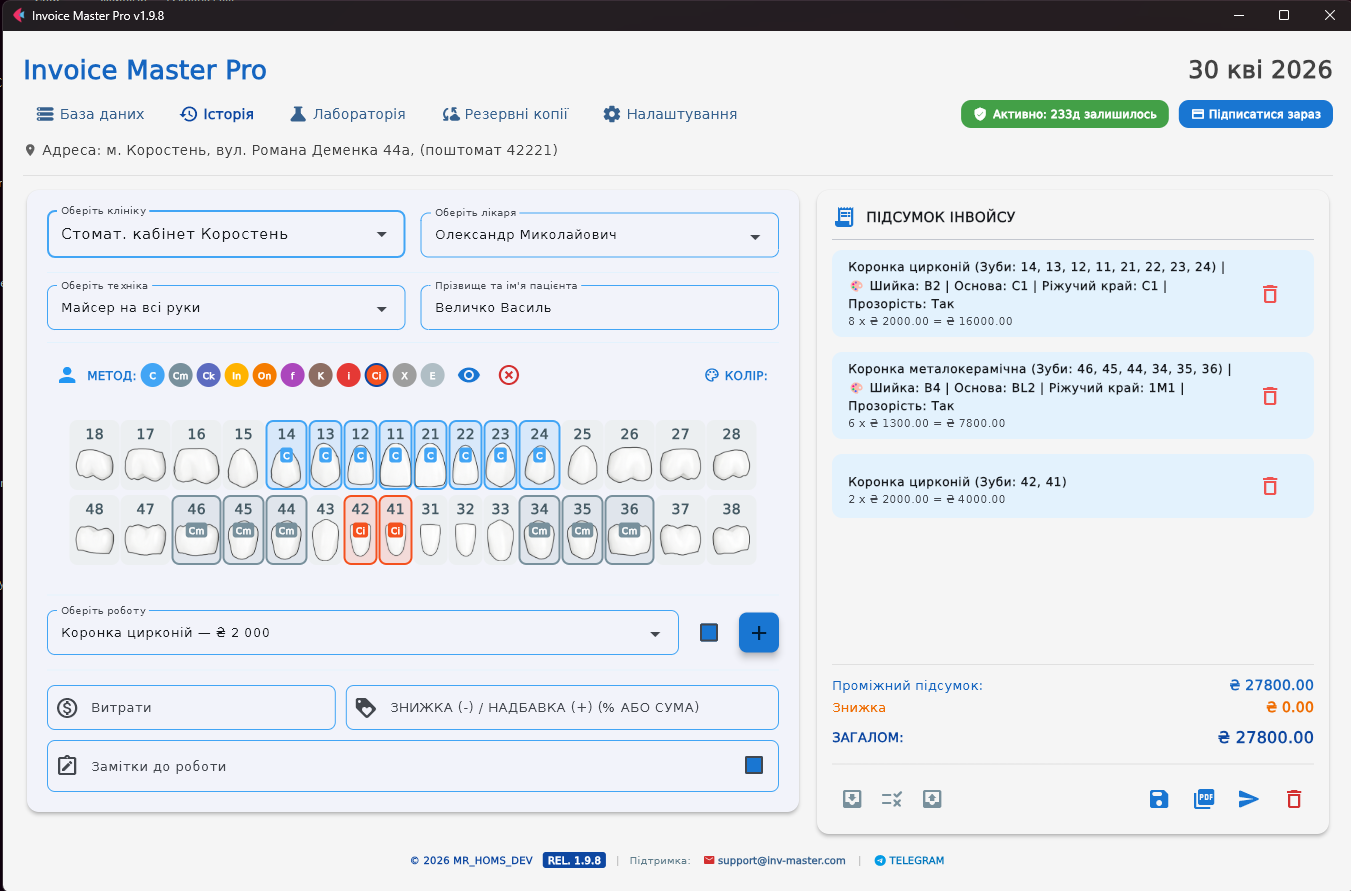
1. How to quickly create an invoice? The process takes mere seconds:

  1. Select the Clinic, Doctor, and Technician from the dropdown lists.
  2. Enter the patient's first and last name.
  3. Select the teeth on the interactive formula (or skip this step if it is a general service, like "Reline" or "Delivery").
  4. Select the required job from the list and press the "+" button.
  5. Save the invoice to the database, open the PDF, or instantly send it to the doctor via email with one button.

2. What are the "Expenses" and "Job Notes" fields for? These fields are created exclusively for your internal accounting.

  • Expenses: Here you enter the amount the laboratory spent on third-party services (e.g., a milling center).
  • Notes: Any important information for you regarding this job. Important: Neither expenses nor notes are printed on the PDF invoice, and the doctor will not see them. They are saved only in your database (in "History").

3. How do I apply a discount or surcharge?
In the "Discount (-) / Surcharge (+)" field, you can enter an amount (e.g., 200) or a percentage (e.g., 10%). If you want to give a discount, enter a minus (-200); if a surcharge for urgency, enter a plus (+200). The program will automatically recalculate the final amount.

4. What is the QR code at the bottom of the PDF invoice?
It contains payment details and a sample QR code. You can easily replace it with your own bank's QR code (in the app folder) – just rename your code to match the original file's name and replace it, allowing doctors to pay invoices with one smartphone scan. If you delete the QR code image from the folder, it simply won't be displayed on the invoices.

1. How to find a specific invoice or check debts?
The "History" tab is the brain of the program. By default, it displays all jobs for the current month (you can switch months using the top arrows). You can use the search bar to instantly find a job by patient name, clinic name, doctor, or invoice number. The search also works as a smart filter and supports complex queries using a semicolon (;). For example, if you enter clinic name; technician name, the program will instantly filter results by both criteria simultaneously.

2. How do the top cards (Paid, Debt, Discounts) work?
These cards not only show overall statistics for the current month but also work as navigation filters. If you click on the "DEBT" card, the table will filter to show only unpaid invoices.

3. How to mark an invoice as "Paid"?
There are corresponding checkboxes in the first column of the table. Simply click the needed one to change the status. The program will definitely ask for confirmation ("Do you really want to mark this as PAID?") to prevent accidental clicks.

4. How to generate a summary report for a clinic for the month?

  • Enter the clinic's name (even partially, e.g., "Dental" for "Dental Clinic New York") into the search bar. The table will filter all jobs for this clinic. You can additionally apply filtering via the cards for debts, paid, or other parameters.
  • Click the "Generate PDF" button (to view or print the report) or the "Send Report" button (to automatically send the summary file via email). Important: The email button will only appear when the filtered jobs belong to a single doctor and clinic. This is a reliable safeguard to ensure you don't accidentally send financial information to the wrong recipient.

1. What's the fastest way to populate the program with my clinics and prices? The most effective way is via Excel!

  1. After downloading the zip archive from the site, you will find a Sample.xlsx file in the program folder. The "dnt" sheet contains detailed instructions on how to transfer your data into the program.
  2. Alternatively, you can enter everything manually through the program interface.

2. How to set up invoice emailing directly from the program?
Go to "Database Manager" -> "Laboratory Profile". Enter your work Email. If you use Gmail, you need to create an "App Password" in your Google account security settings (a 16-digit code) and paste it into the program. Your regular email password will not work.

3. How to change the currency or tooth numbering system?
On the main screen, click "Settings" (the gear icon). There you can choose the interface language, currency symbol (₴, $, €, £), and tooth numbering system: Universal/American (1-32) or FDI World Dental / ISO (18-48).

1. Where are my prices and job history physically stored?
All databases are stored exclusively locally on your computer. We do not have access to your data, and it is not uploaded to our servers. The confidentiality of your patients and finances is 100% guaranteed.

2. What happens if my computer breaks? How can I avoid losing my database?
The program automatically makes a daily backup of your database upon the first launch (keeping backups for the last 30 days). We strongly recommend selecting "Personal Cloud (Google Drive)" in the "Backups" tab. In this case, the program will save backups directly to your Google Drive. If your PC breaks, your data will remain completely safe in the cloud.

3. How to restore data on a new computer?
Install the program on the new PC, go to the "Backups" tab, select the required backup file from the list, and click "Restore". After restarting the program, all your clinics, settings, and invoice history will be fully restored!

Professional Plan
$24.99/mo

Download the app to automatically start your 30-day free trial.
Full features, no limitations.

Subscribe Now

🛡️ Secure via Paddle 🔓 Cancel Anytime

Your 30-day trial activates automatically on your first launch. Return here via the app menu to subscribe when you're ready.

Why Choose InvoiceMaster?

Feature Others (USA) InvoiceMaster
Monthly Subscription $79 – $310+ $24.99
Setup & Training Fee $500 – $2000 FREE
Learning Curve Weeks 10 Mins
Cases & Invoices Limited Unlimited